

MS-100 Exam Question 101
You have a Microsoft 365 subscription that uses an Azure Active Directory (Azure AD) tenant named contoso.com. The tenant contains the users shown in the following table.

You configure the Office software download settings as shown in the exhibit. (Click the Exhibit tab.)
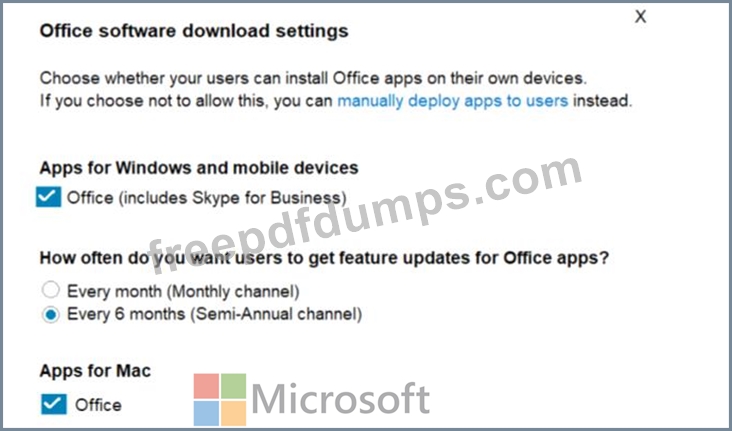
For each of the following statements, select Yes if the statement is true. Otherwise, select No.
NOTE: Each correct selection is worth one point.

You configure the Office software download settings as shown in the exhibit. (Click the Exhibit tab.)
For each of the following statements, select Yes if the statement is true. Otherwise, select No.
NOTE: Each correct selection is worth one point.

MS-100 Exam Question 102
Your company has an on-premises Microsoft SharePoint Server environment and a Microsoft 365 subscription.
When users search for content from Microsoft 365, you plan to include content from the on-premises SharePoint Server environment in the results.
You need to add crawled metadata from the on-premises SharePoint Server content to the Microsoft Office 365 search index.
What should you do first?
When users search for content from Microsoft 365, you plan to include content from the on-premises SharePoint Server environment in the results.
You need to add crawled metadata from the on-premises SharePoint Server content to the Microsoft Office 365 search index.
What should you do first?
MS-100 Exam Question 103
Your company has a Microsoft 365 subscription.
Your plan to add 100 newly hired temporary users to the subscription next week.
You create the user accounts for the new users.
You need to assign licenses to the new users.
Which command should you run?
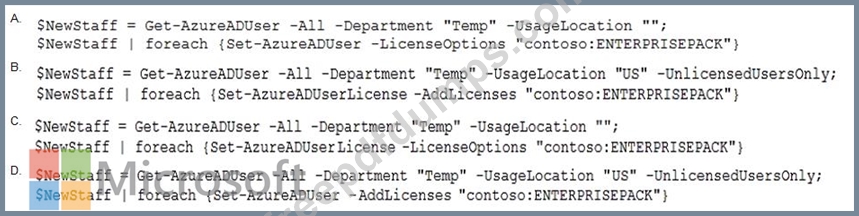
Your plan to add 100 newly hired temporary users to the subscription next week.
You create the user accounts for the new users.
You need to assign licenses to the new users.
Which command should you run?
MS-100 Exam Question 104
Which role should you assign to User1?
MS-100 Exam Question 105
Please wait while the virtual machine loads. Once loaded, you may proceed to the lab section. This may take a few minutes, and the wait time will not be deducted from your overall test time.
When the Next button is available, click it to access the lab section. In this section, you will perform a set of tasks in a live environment. While most functionality will be available to you as it would be in a live environment, some functionality (e.g., copy and paste, ability to navigate to external websites) will not be possible by design.
Scoring is based on the outcome of performing the tasks stated in the lab. In other words, it doesn't matter how you accomplish the task, if you successfully perform it, you will earn credit for that task.
Labs are not timed separately, and this exam may have more than one lab that you must complete. You can use as much time as you would like to complete each lab. But, you should manage your time appropriately to ensure that you are able to complete the lab(s) and all other sections of the exam in the time provided.
Please note that once you submit your work by clicking the Next button within a lab, you will NOT be able to return to the lab.
You may now click next to proceed to the lab.
Lab information
Use the following login credentials as needed:
To enter your username, place your cursor in the Sign in box and click on the username below.
To enter your password, place your cursor in the Enter password box and click on the password below.
Microsoft 365 Username:
[email protected]
Microsoft 365 Password: 3&YWyjse-6-d
If the Microsoft 365 portal does not load successfully in the browser, press CTRL-K to reload the portal in a new browser tab.
The following information is for technical support purposes only:
Lab Instance: 10887751
Your organization has an office in Seattle.
You plan to create 100 users who will work in the Seattle office. The city attribute for all the users will be Seattle.
You need to create a group named Group1 that will automatically contain all the Seattle office users.
When the Next button is available, click it to access the lab section. In this section, you will perform a set of tasks in a live environment. While most functionality will be available to you as it would be in a live environment, some functionality (e.g., copy and paste, ability to navigate to external websites) will not be possible by design.
Scoring is based on the outcome of performing the tasks stated in the lab. In other words, it doesn't matter how you accomplish the task, if you successfully perform it, you will earn credit for that task.
Labs are not timed separately, and this exam may have more than one lab that you must complete. You can use as much time as you would like to complete each lab. But, you should manage your time appropriately to ensure that you are able to complete the lab(s) and all other sections of the exam in the time provided.
Please note that once you submit your work by clicking the Next button within a lab, you will NOT be able to return to the lab.
You may now click next to proceed to the lab.
Lab information
Use the following login credentials as needed:
To enter your username, place your cursor in the Sign in box and click on the username below.
To enter your password, place your cursor in the Enter password box and click on the password below.
Microsoft 365 Username:
[email protected]
Microsoft 365 Password: 3&YWyjse-6-d
If the Microsoft 365 portal does not load successfully in the browser, press CTRL-K to reload the portal in a new browser tab.
The following information is for technical support purposes only:
Lab Instance: 10887751
Your organization has an office in Seattle.
You plan to create 100 users who will work in the Seattle office. The city attribute for all the users will be Seattle.
You need to create a group named Group1 that will automatically contain all the Seattle office users.