What are the three main components of UiPath Integration Service?
Correct Answer: C
Explanation UiPath Integration Service is a feature that enables you to integrate UI and API automation in a unified way. The three main components of UiPath Integration Service are: Connectors: These are pre-built or custom components that provide access to various applications or systems through their APIs. You can use connectors to perform actions or retrieve data from different sources, such as Salesforce, Slack, Google Sheets, etc. (UiPath Integration Service documentation1) Connections: These are configurations that store the authentication and connection details for each connector. You can create and manage connections in the UiPath Automation Cloud and share them across different folders and processes. (UiPath Integration Service documentation2) Triggers: These are rules that define when and how to start a process in Orchestrator based on events from connectors. You can configure triggers to react to data changes, insertions, deletions, or custom events in the connected applications or systems. (UiPath Integration Service documentation3) References: 1: Integration Service - Connectors - UiPath Documentation Portal. 2: Integration Service - Connections - UiPath Documentation Portal. 3: Integration Service - Triggers - UiPath Documentation Portal.
UiPath-ADAv1 Exam Question 27
What is a pre-requisite for running functional test cases in REFramework?
Correct Answer: B
Explanation A pre-requisite for running functional test cases in REFramework is to invoke the InitAllSettings XAML file, which initializes the application, reads the configuration file, and sets the log level. This file is invoked in the Init state of the Main XAML file, which is the entry point of the REFramework. By invoking the InitAllSettings file, you can ensure that the test cases have access to the necessary settings and parameters for the automation project. (UiPath Studio - Testing Frameworks - UiPath Academy) References: Studio - Testing Frameworks - UiPath Documentation Portal UiPath Studio - Testing Frameworks - UiPath Academy REFramework documentation.pdf - Google Drive
UiPath-ADAv1 Exam Question 28
During a code review, a developer discovered that the variable names did not follow best practices in an automation project. What happens when the developer updates the names of the variables in the Variables panel?
Correct Answer: C
Explanation The Variables panel is a panel in UiPath Studio that allows you to create and manage variables in a workflow file. You can change the name, type, scope, and default value of a variable in the Variables panel. When you update the name of a variable in the Variables panel, all the activities that use that variable in the current file are automatically updated with the new name. This ensures that the variable references are consistent and valid throughout the workflow. However, if the variable is used in other workflow files, such as invoked workflows or libraries, you need to manually update the name in those files as well. Therefore, the answer is C. All variable names are automatically updated in the activities in the current file. References: Managing Variables, Variables
UiPath-ADAv1 Exam Question 29
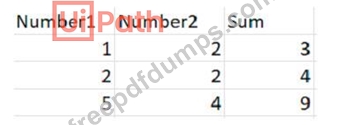
Consider testing a workflow that computes the sum of two numbers having the data driven test data from the Excel file below: Expanding the functionality of the workflow to compute the sum of three numbers, the data needs to be updated as well to accommodate the new scenario: What are steps to do that?
Correct Answer: A
Explanation To update the data to accommodate the new scenario, you need to modify the Excel file that contains the test data and then refresh the test case to reflect the changes. The steps are as follows: Open the Excel file that has the test data for the workflow. It should have four columns: Number1, Number2, Sum, and Result. Add a new column after Number2 and name it Number3. This column will store the third number for the sum operation. Update the existing rows in the Excel file to include a value for Number3 and adjust the value of Sum accordingly. For example, if Number1 is 1, Number2 is 2, and Number3 is 3, then Sum should be 6. Save and close the Excel file. In UiPath Studio, right click on the test case that uses the Excel file as the test data source and select Update Test Data. This will open a window where you can edit the test data settings. In the Update Test Data window, make sure that the Excel file path is correct and that the sheet name is selected. You can also change the name and description of the test data if you want. Click OK to save the changes and close the window. Right click on the test case again and select Refresh Test Data. This will reload the test data from the Excel file and update the test case accordingly. You have successfully updated the test data to compute the sum of three numbers instead of two. You can now run or debug your test case with data variations1.
UiPath-ADAv1 Exam Question 30
When using a dynamic selector which data type is supported?
Correct Answer: C
Explanation When using a dynamic selector, the data type that is supported is String. A dynamic selector is a selector that uses a variable or an argument as a property for the attribute of the target element. This allows the selector to easily identify the target element based on the value of the variable or argument, and not an exact string, which might change depending on the interactions inside the automation project1. The variable or argument that is used in the dynamic selector must be of type String, as the attribute values are always strings2. For example, a dynamic selector can use a variable named MenuOption to click on different menu items in an application, such as File, Edit, or Format. The variable MenuOption must be a String variable, and its value can be changed at runtime to interact with different elements. A dynamic selector has the following format, where { {Value}} is the name of the variable or argument that holds the property of the element you want to interact with1: Dynamic Selector Format <tag attribute = { {Value}} /> References: Dynamic Selectors and How many types of selectors are in UiPath? from UiPath documentation and forum.